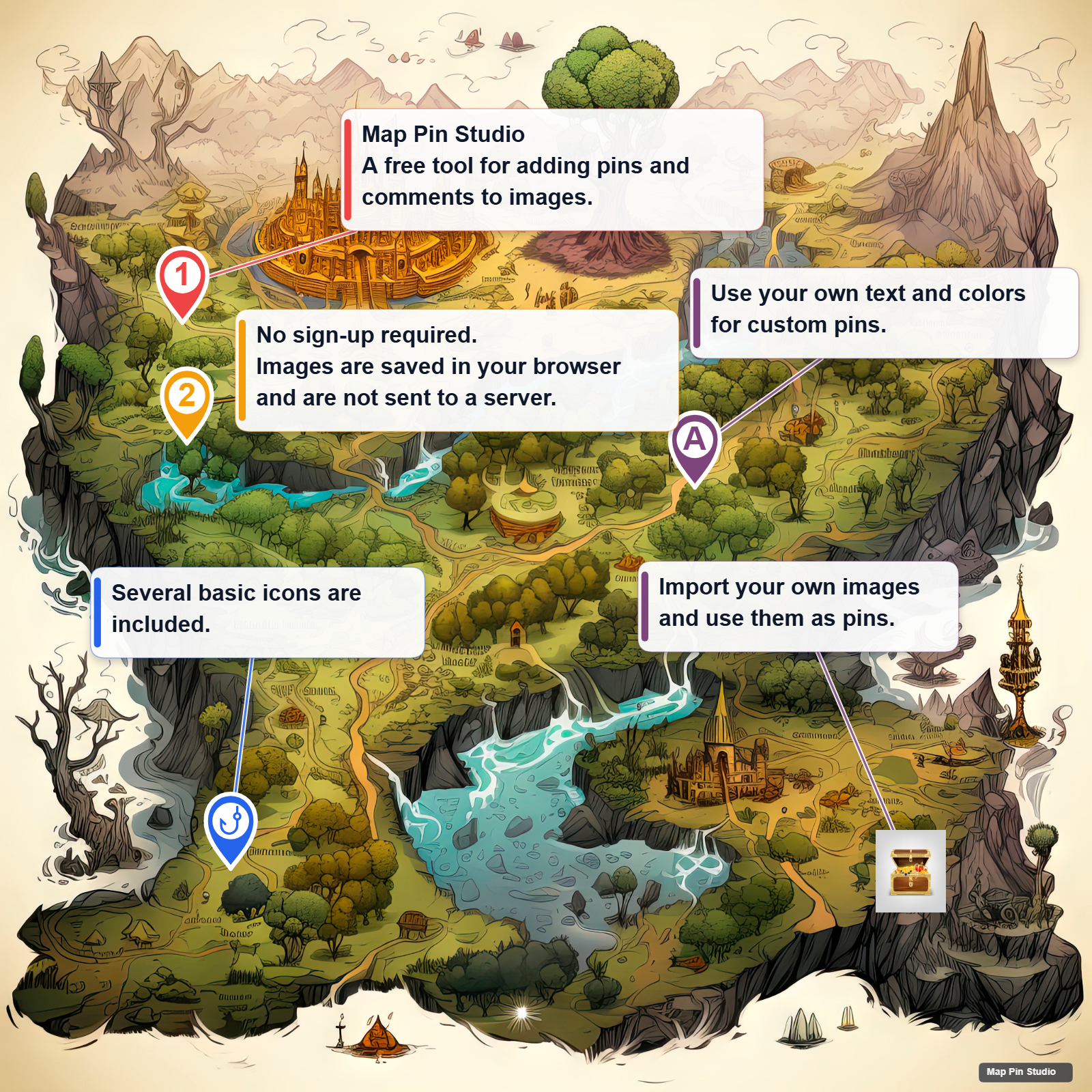
Load an image
Use Load image in the project card and choose a local image. The image is saved in your browser storage and is not uploaded to the app server.
Use Load image in the project card and choose a local image. The image is saved in your browser storage and is not uploaded to the app server.
In Pin settings, choose an icon and accent color. You can use numbers, text, built-in icons, and imported image icons.
Press Place pin near the upper-right of the map or inside Pin settings. Then tap or click the point where you want to add the pin.
Select a pin to open the comment editor. Text entered in the note field appears as a comment label on the map.
Drag a comment label to place it by hand. A connector line links the label to its pin, so the relationship stays clear.
Open Preview to check the rendering used for the saved image. Pin size and comment size for export can be adjusted inside the preview.
Use Export from the preview or the top controls to save a PNG. On PC this usually starts a download. On mobile, the browser may open sharing or save options.
The project card can export a restorable backup file containing the image, pins, text icons, and custom icons.
Clicking the map alone will not place a pin. Press Place pin first and confirm that placement mode is active.
Drag comment labels to move them. You can also reset the selected comment position or reset all manual comment positions.
Data is stored in the current browser. Export a backup if you want to continue on another device or protect against browser data deletion.